jTDS Exception - Connection Refused.
Applies to: ManageEngine Applications Manager 9, Hyper-V, SQL Server 2008 SP1 CU4.
Problem Description.
We installed a SQL Server 2008 64-bit instance on a Hyper-V virtual machine,
and then tried to install ManageEngine Applications Manager 9 on another
Hyper-V virtual machine that will access the SQL Server instance.
We were unable to install ManageEngine Applications Manager 9 (AppManager 9)
and found the following errors on the logs generated by the setup program:
java.sql.SQLException: Network error IOException: Connection refused:
connect
at
net.sourceforge.jtds.jdbc.ConnectionJDBC2.<init>(ConnectionJDBC2.java:385)
at
net.sourceforge.jtds.jdbc.ConnectionJDBC3.<init>(ConnectionJDBC3.java:50)
at net.sourceforge.jtds.jdbc.Driver.connect(Driver.java:182)
at java.sql.DriverManager.getConnection(Unknown Source)
at java.sql.DriverManager.getConnection(Unknown Source)
at jdbc.CreateSchema.createDataBaseAMDB_MSSQL(CreateSchema.java:154)
at jdbc.CreateSchema.instantiateConnection(CreateSchema.java:197)
at jdbc.CreateSchema.init(CreateSchema.java:84)
at jdbc.CreateSchema.main(CreateSchema.java:93)
at
com.adventnet.appmanager.server.startup.StartServer.startmysql(StartServer.j
ava:1268)
at
com.adventnet.appmanager.server.startup.StartServer.main(StartServer.java:86
9)
at sun.reflect.NativeMethodAccessorImpl.invoke0(Native Method)
at sun.reflect.NativeMethodAccessorImpl.invoke(Unknown Source)
at sun.reflect.DelegatingMethodAccessorImpl.invoke(Unknown Source)
at java.lang.reflect.Method.invoke(Unknown Source)
at
org.tanukisoftware.wrapper.WrapperSimpleApp.run(WrapperSimpleApp.java:136)
at java.lang.Thread.run(Unknown Source)
Cause.
In this case, this was an exception thrown by jTDS when it couldn't connect
to the remote instance of SQL Server over TCP/IP port 1433. TCP/IP was not
enabled on the SQL Server instance.
Solution.
Perform the following steps to enable TCP/IP on the SQL Server instance:
1. Go to Start -> All Programs -> Microsoft SQL Server 2008 -> SQL Server
Configuration Manager
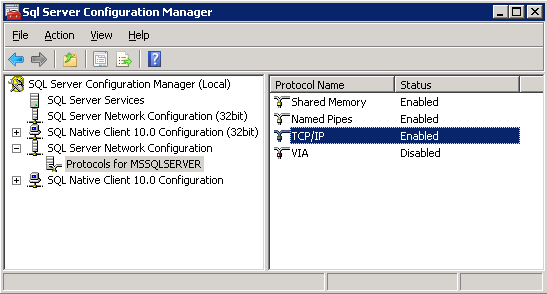
2. In SQL Server Configuration Manager, expand SQL Server Network
Configuration.
3. Click Protocols for MSSQLSERVER.
4. In the details pane, right-click the TCP/IP protocol, and then click
Enable.
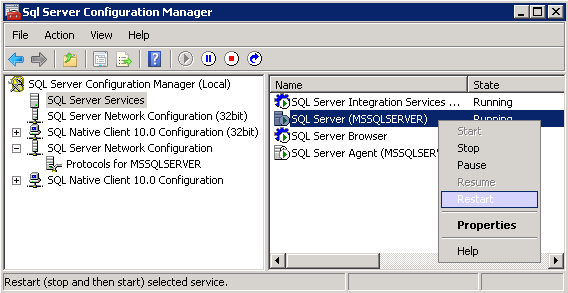
5. Back in the console pane, click SQL Server Services.
6. In the details pane, right-click SQL Server (MSSQLSERVER), and then click
Restart, to stop and restart the SQL Server service.
If the problem continue after enabling TCP/IP, then verify your firewall is
not blocking TCP/IP port 1433.
![[Company Logo Image]](images/SQLCofee.jpg)